How to Use AI Panel Editing for Manga: A Complete Guide
Master Oniichan's AI manga panel editing tools. Learn page editing, panel-level inpainting, masked region edits, and AI chat-driven editing to perfect your manga pages.
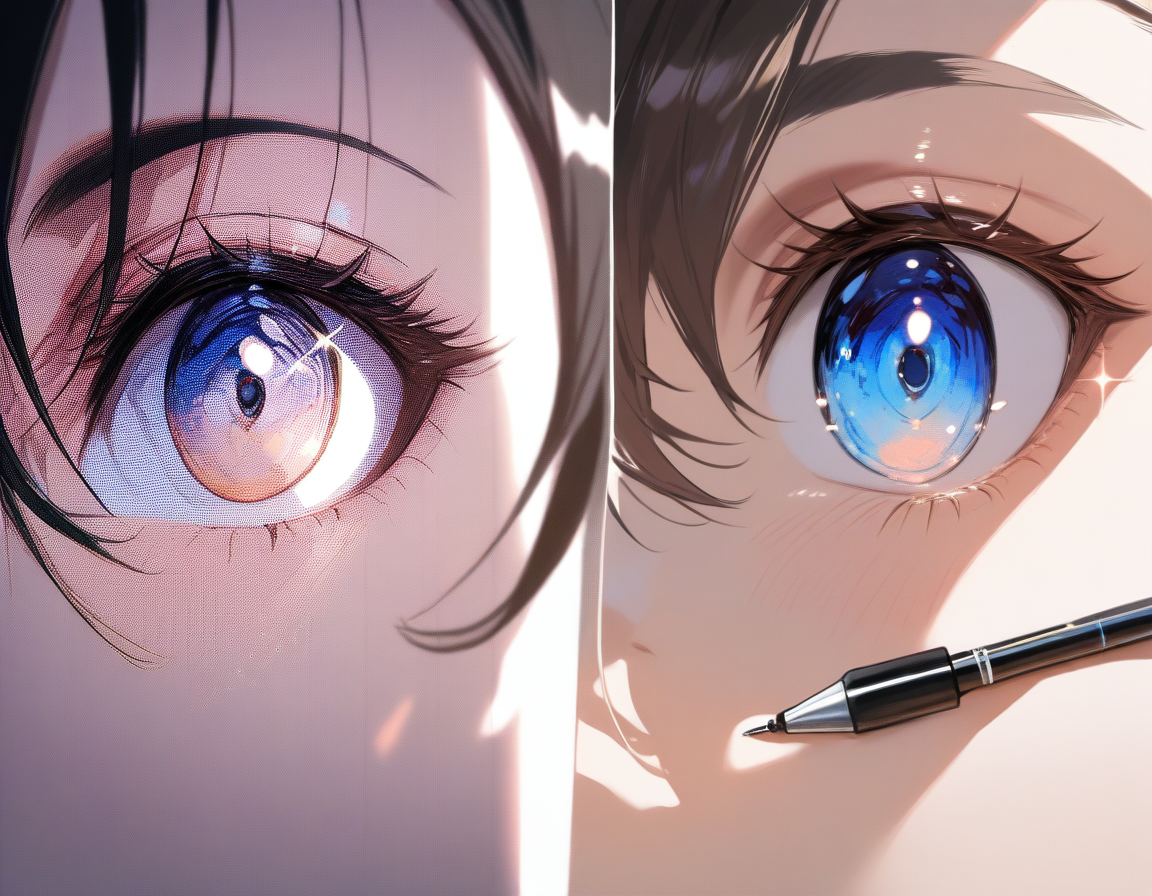
Generating a manga page with AI is exciting. But the real creative control comes after that first generation, when you start editing. A generated page might be 90% perfect, with one panel where the character's expression is wrong, the background does not match the scene, or a detail is missing that the story requires. In traditional manga creation, fixing a single panel means redrawing it by hand. With AI-powered panel editing, you describe what you want changed and the tool handles the rest.
Oniichan provides a layered editing system that gives you control at every level: full page regeneration, individual panel editing, and precise masked region inpainting. This guide covers all three approaches, when to use each one, and how to write edit prompts that get the results you want.
The Three Levels of Manga Editing
Think of Oniichan's editing system as a set of increasingly precise tools. You would not use a sledgehammer to hang a picture frame, and you would not use a pin to knock down a wall. The same principle applies to manga editing. Choose the right level of editing for the change you need to make.
| Edit Level | Best For | Scope | Fidelity to Original |
|---|---|---|---|
| Full Page | Mood, composition, art style changes | Entire page | Medium -- uses original as anchor |
| Panel-Level | Expression fixes, background swaps, character corrections | Single panel | High -- surrounding panels untouched |
| Masked Region | Eye color, small props, removing elements | Specific pixels | Very high -- only masked area changes |
Level 1: Full Page Editing
Full page editing is for when the overall composition, mood, or direction of a page needs to change. Maybe the page was generated with a daytime setting but you realized the scene should be at night. Maybe the character poses are all wrong and you want a completely different staging. Maybe you liked the layout but want a different art style applied to the whole page.
When you edit at the page level through Oniichan's page generation system, the AI uses your current page image as a fidelity anchor. This means it does not start from scratch. It understands the existing composition and makes changes while trying to preserve the elements that already work.
How to use full page editing:
- Open your project -- Navigate to your manga in the Oniichan editor
- Select the page -- Go to the page you want to edit
- Describe your changes -- Use the page edit interface to explain what needs to change
- Review the result -- The AI rewrites your request into optimized generation instructions and renders the updated page
💡 Tip: Full page editing works best when you need broad changes that affect the entire page. If your issue is localized to a specific area, the next two levels will give you better results with less disruption to the parts you already like.
Level 2: Panel-Level Editing
Panel editing is the sweet spot for most manga corrections. It targets a single panel within your page, leaving everything else untouched. This is what you reach for when one panel has a character with the wrong facial expression, an incorrect background element, a missing prop, or any other issue contained within a single frame.
Oniichan's panel editor uses AI inpainting to redraw the contents of a panel based on your description while maintaining visual consistency with the surrounding panels. The edited panel is then composited back into the full page automatically, so the transitions between panels remain seamless.
How to use panel-level editing:
- Select the panel -- In the editor, click the panel you want to change
- Open the chat -- Launch the panel edit chat interface
- Describe the fix -- Tell the AI what you want changed in that panel
- Iterate if needed -- The chat is conversational, so follow up with clarifications
💡 Tip: The panel edit chat is conversational. If the first edit gets the facial expression right but changes the hair color, you can follow up with a clarification and the AI will adjust. Each round builds on the previous result rather than starting over.
Level 3: Masked Region Editing (Local Inpainting)
Masked region editing is precision work. Instead of editing an entire panel, you paint a mask over the exact area you want changed and describe what should replace it. Everything outside the mask stays completely untouched.
This is the tool for surgical corrections: fixing a character's eye color, adding a scar, changing text on a sign, removing an unwanted element, or adding a small detail like a necklace.
How to use masked region editing:
- Select the panel -- Choose the panel containing the area you want to edit
- Switch to masking mode -- Activate the mask tool in the panel editor
- Paint the mask -- Cover the specific region with some margin around it
- Describe the replacement -- Tell the AI what the masked area should look like
- Review the inpaint -- The AI replaces only the masked pixels
⚠️ Note: A mask that is too small might not give the AI enough room to make a natural-looking change. A mask that is too large starts to approach panel-level editing territory. Aim for a mask that covers the target area plus a small buffer.
Writing Effective Edit Prompts
The quality of your edit depends heavily on how you describe what you want. AI manga editing is a conversation, not a magic wand. Here are the principles that consistently produce the best results.
Be Specific About What Should Change
Vague prompts produce vague results. Instead of "make this panel better," tell the AI exactly what is wrong and what you want instead.
| Weak Prompt | Strong Prompt |
|---|---|
| "Fix the character's face." | "Change the expression from neutral to a confident smirk. Keep the same angle and lighting. Eyes should be slightly narrowed." |
| "The background is ugly." | "Replace the background with a moonlit rooftop overlooking a city skyline." |
| "The shading is off." | "Add dramatic side lighting from the left, casting deep shadows on the right side of the character's face." |
The strong prompts tell the AI three things: what to change, what to change it to, and what to preserve. This level of specificity drastically reduces the number of iterations you need.
Describe the Target State, Not Just the Problem
It is tempting to describe what is wrong with the current image, but the AI needs to know what right looks like. The more precisely you can articulate your creative vision, the fewer rounds of editing you will need.
Reference Other Panels for Consistency
One of the most common issues in manga editing is maintaining visual consistency across panels. For a deeper look at how Oniichan solves the consistency challenge, see our article on character consistency in AI manga. When writing edit prompts, reference other parts of your manga to anchor the AI's understanding. Phrases like "match the character's appearance from the previous panel" or "use the same background style as the establishing shot" help maintain coherence.
Work From Large to Small
When a page needs multiple corrections, resist the urge to fix everything at once. Start with the largest changes and work your way down to the details. Large edits can sometimes affect surrounding areas in subtle ways, and you want those settled before you start doing precision work.
Common Editing Scenarios and How to Handle Them
Here are the most frequent editing situations manga creators encounter, along with the recommended approach for each.
Fixing Character Expressions
Best approach: Panel-level edit or masked region edit on the face area.
Facial expressions are one of the most important elements in manga storytelling, and they are also one of the things AI generation sometimes gets slightly wrong. If the overall expression is wrong (happy instead of angry), use a panel-level edit. If the expression is mostly right but one element is off, use a masked region edit on just that element.
Example prompt: "The character should look shocked and terrified. Wide eyes with small pupils, mouth open, sweat drops on the forehead. The rest of the body language should convey someone frozen in place."
Changing Backgrounds
Best approach: Panel-level edit.
Backgrounds are large areas that affect the entire mood of a panel. Masked region editing is usually too localized for background changes.
Example prompt: "Change the background from a classroom interior to a dark forest at night. Tall trees with minimal moonlight filtering through. Keep the characters and their poses exactly the same."
Adding or Removing Objects
Best approach: Masked region edit.
Need to add a sword to a character's hand? Remove a distracting element? Masked region editing is perfect for these targeted additions and removals.
Example prompt for adding: "A glowing katana held in the character's right hand, blade pointing upward, with a faint blue energy aura around it."
Example prompt for removing: "Remove the lamppost and replace with empty sky matching the surrounding atmosphere."
Adjusting Lighting and Mood
Best approach: Full page edit or panel-level edit, depending on scope.
Example prompt: "Shift the entire panel to a sunset lighting scheme. Warm orange light from the right side, long shadows stretching to the left. The sky should show a gradient from deep orange to purple."
Correcting Anatomy or Proportions
Best approach: Panel-level edit with detailed description, or masked region edit for localized fixes.
Example prompt: "Redraw the character's left hand to show five distinct fingers gripping the handle of a coffee mug. The hand should be proportional to the character's arm and drawn at the same angle."
Advanced Techniques
Once you are comfortable with the basic editing workflow, these advanced techniques will help you get even more out of the system.
Iterative Refinement
The panel edit chat's conversational nature is one of its most powerful features. Instead of trying to get everything perfect in a single prompt, use a series of focused edits:
- First pass -- Get the composition and major elements right
- Second pass -- Refine expressions and character details
- Third pass -- Polish lighting, shadows, and small details
Each pass builds on the previous result, so you are continuously improving rather than rolling the dice on a fresh generation each time.
Using Reference Images in Edits
When editing characters, Oniichan's character creator and character library become powerful tools. Learn more about why reference sheets are so important in our guide to anime character reference sheets. Generate and save reference art for your characters before you start editing manga pages. When the editor processes your panel edits, it can reference these saved character designs to maintain consistency.
Combining Edit Levels in a Single Page
The most polished manga pages often use all three editing levels in sequence:
- Generate the initial page from your outline
- Full page edit to adjust overall mood or composition if needed
- Panel-level edits to fix individual panels that need significant changes
- Masked region edits for final detail corrections -- fixing eyes, adding effects, cleaning up edges
By the time you have gone through this sequence, you have a page that looks deliberate and polished rather than obviously AI-generated.
Tips for Getting the Best Results
After working with hundreds of manga creators, here are the tips that consistently make the biggest difference in edit quality:
- Give the AI room to work. When using masked region edits, make your mask slightly larger than the area you want changed. The AI needs boundary pixels to blend naturally.
- Maintain style consistency. If your manga has a specific art style, reference it in your edit prompts. "Match the shading style used in previous pages" goes a long way.
- Do not over-edit. Sometimes the fifth iteration is worse than the second. Each pass introduces small inconsistencies. If a panel is good enough after two rounds, move on.
- Save versions. Oniichan tracks page versions, but being intentional about which version you are editing from prevents accidental loss of good work.
- Use the world bible. Your project's world bible provides context during editing that helps the AI maintain consistency with your established setting and visual language.
Start Editing Your Manga
Oniichan's panel editing tools are available in every manga project. Whether you are working on your first page or your fiftieth, the editing workflow is the same: generate, review, and refine until every panel tells the story you want it to tell.
If you have not started a manga project yet, head to the AI manga generator to create your first pages. Our step-by-step guide to turning your story into a manga walks you through the entire process from concept to finished chapter. If you already have pages that need polish, open your project in the editor and start experimenting with panel edits. The best way to learn the editing tools is to use them, and with AI-powered editing, every experiment is fast, reversible, and free of the intimidation that comes with putting pencil to paper.
Your manga pages deserve to look exactly the way you imagined them. The editing tools are there to close the gap between the first generation and your creative vision.
Ready to create your own character?
Turn your OC ideas into polished anime character art with consistent designs. No drawing skills needed.