AI Sprite Generator: Create Game Sprites and Pixel Art with AI
A complete guide to generating game sprites, pixel art, and sprite sheets with AI. Learn how to create character sprites, animation frames, environment tiles, and game-ready assets for indie development.
The Indie Game Art Problem
Every indie game developer hits the same wall. You have a game design document full of brilliant ideas, a working prototype with placeholder squares, and absolutely no budget for a dedicated pixel artist. The gap between "functional prototype" and "visually polished game" has killed more indie projects than bad game design ever has.
Traditional options are not great:
- Learning pixel art from scratch takes months of dedicated practice
- Commissioning sprite sheets for even a small game can cost thousands of dollars
- Asset packs from marketplaces mean your game looks identical to dozens of others
AI sprite generators have opened a third path. They will not replace skilled pixel artists for AAA production, but they have become remarkably effective at producing game-ready sprites for indie projects, game jams, prototypes, and solo development.
What AI Sprite Generators Actually Do
An AI sprite generator takes text descriptions or reference images and produces game-ready 2D art. The best tools in 2026 can generate individual sprites, multi-frame animation sheets, tileable environment textures, and UI elements consistent enough to ship.
There are a few categories of output you should understand:
| Asset Type | Description | Use Case |
|---|---|---|
| Individual character sprites | Single images in specific poses | Static elements, portraits, base animation frames |
| Sprite sheets | Multiple frames in a grid | Walk cycles, attacks, idle loops (what your engine imports) |
| Environment tiles | Small, repeating art pieces | Grass, stone walls, water, platform edges |
| UI elements | Buttons, frames, health bars, dialogue boxes | Interface layer tying visual identity together |
Choosing Your Sprite Style
Before generating anything, decide on a visual style. This decision affects every prompt and every asset, so getting it right upfront saves enormous rework.
Classic Pixel Art (16x16 to 64x64)
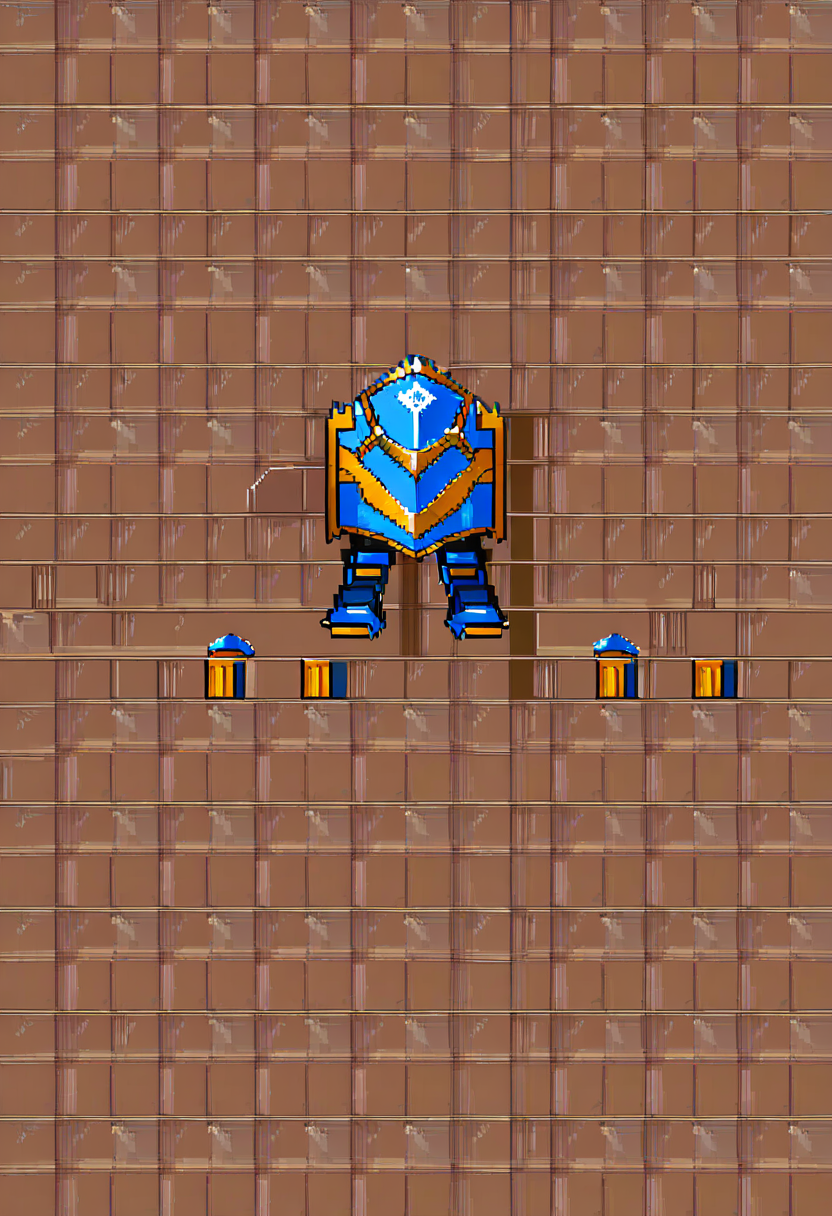
The retro aesthetic. Think early Zelda, Celeste, or Stardew Valley. AI generators handle this style well because the constraint actually helps -- there are fewer pixels to get wrong.
- 16x16 sprites: Emphasize silhouette readability above all else. A character needs to be identifiable from outline alone
- 32x32 and 48x48 sprites: The sweet spot for most indie 2D games. Hair styles become distinguishable, outfit elements visible, expressions possible
Tip: For 16x16 sprites, describe shape language, not fine detail. "A short, round character with a tall pointed hat" reads clearly. "A character with intricate facial tattoos" does not.
High-Resolution 2D (128x128 and up)
Games like Hollow Knight, Ori, or Gris use larger, more detailed 2D sprites. AI can produce these, but consistency across a full sprite sheet is harder at higher resolutions.
Plan to do more manual cleanup between generated frames. The AI gives you an excellent starting point, but you will likely need touch-ups in Aseprite or Photoshop.
Anime and Stylized 2D
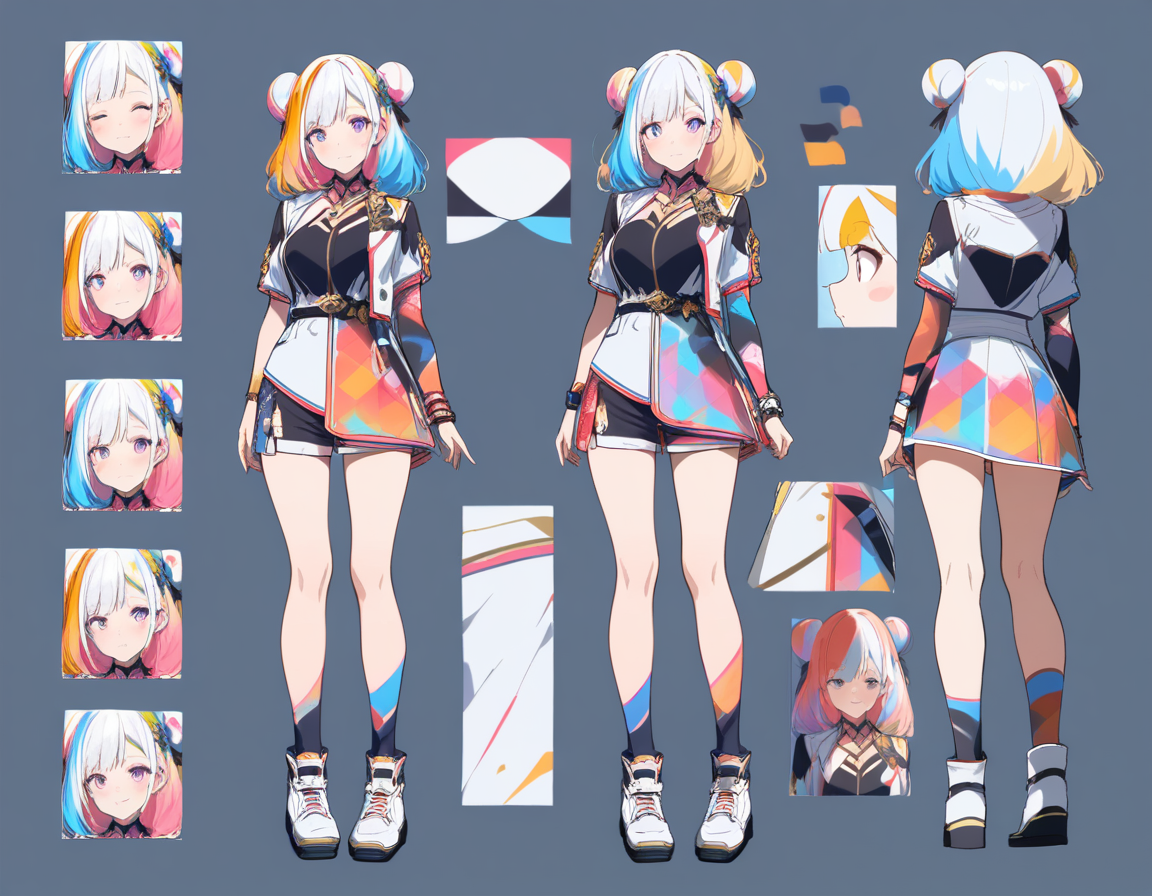
For visual novels, RPGs with character portraits, or anime aesthetic games, tools like Oniichan's AI character creator are particularly strong. Our guide on how to create anime characters with AI covers the full character design process. Generate the detailed portrait version first, then use it as a reference for the simplified in-game sprite.
Creating Character Sprites That Work
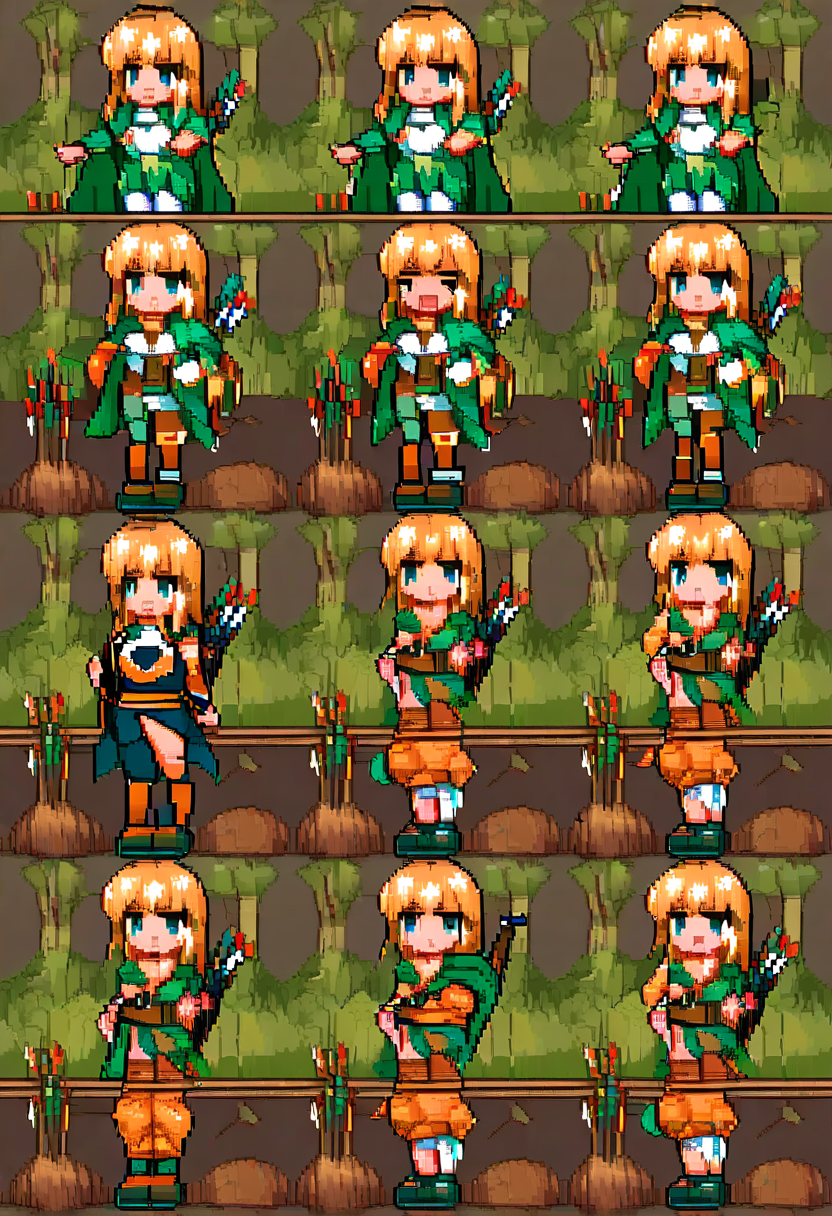
Character sprites are the heart of most 2D games.
Start With a Character Design Document
Before generating sprites, define your character. Write down their silhouette shape, color palette (4-6 colors for pixel art), distinctive features, and personality.
A strong character sprite prompt includes:
- Art style and resolution --- "32x32 retro game character" sets expectations immediately
- View angle --- side view for platformers, top-down for RPGs, three-quarter for isometric
- Color palette --- describe it or provide hex codes
- Silhouette description --- "tall and thin with a wide-brimmed hat" or "small and stocky with oversized gauntlets"
- Key details --- the 2-3 visual elements that make this character recognizable
Animation Frame Generation
Getting a walk cycle from AI requires a different approach than a single sprite. You need consistency between frames while also getting the motion you want.
The most reliable method:
- Generate your character's idle pose first and get it exactly right
- Use that as a reference for generating additional frames
- Describe motion state precisely: "same character, left foot forward, arms mid-swing"
- Generate more frames than you need and curate the best ones
Tip: A four-frame walk cycle might require generating eight to twelve candidate frames to find four that flow naturally. This is still dramatically faster than drawing each frame by hand.
Standard Animation Frame Counts
| Animation | Frames Needed |
|---|---|
| Idle (breathing/bobbing) | 2-4 |
| Walk cycle | 4-8 |
| Run cycle | 6-8 |
| Attack | 3-6 |
| Death/hit | 3-5 |
| Jump (launch, peak, land) | 3 |
Maintaining Consistency Across Your Cast
The biggest challenge: making twenty characters that look like they belong in the same game.
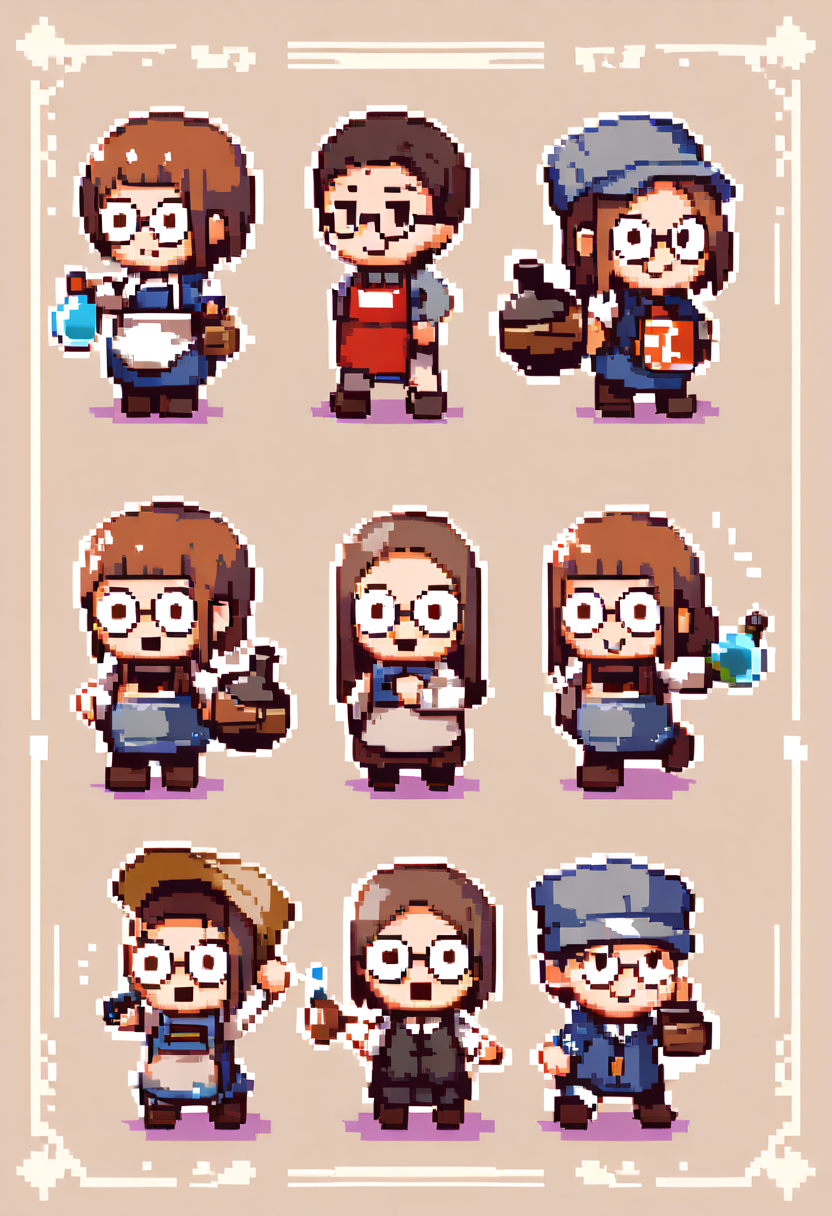
- Lock down a style prompt prefix for every character: "32x32 pixel art sprite, side view, black outline, limited palette, retro SNES style"
- Generate your core cast in the same session when possible
- Establish a style reference character first, then reference that aesthetic for others
Environment Tiles and World Building
Character sprites get the most attention, but environment art makes up the majority of pixels on screen.
Tileable Terrain
For terrain tiles, the key word in your prompt is "seamless" or "tileable." Effective prompts specify:
- The exact tile size ("32x32 tileable")
- The material ("grass," "stone cobblestone," "sandy beach")
- The perspective matching your game's camera
- The level of detail appropriate for your style
- Whether it needs edge variants for terrain transitions
Props and Decorative Elements
Trees, rocks, chests, signs, barrels, crates. Generate in batches by category:
"Set of 6 different fantasy trees, 32x32, pixel art, varied heights and shapes, green and brown palette"
This gives variety while maintaining style coherence.
Building and Structure Tiles
Generate modular pieces rather than complete structures. A wall segment, a door, a window, a roof corner, a roof edge, and a chimney can be assembled into dozens of different buildings.
Game Jam Workflows
Game jams are where AI sprite generation truly shines. When you have 48 hours to build a complete game, here is a streamlined workflow:
| Phase | Hours | Focus |
|---|---|---|
| Style lock | Hour 1 | Generate 3-4 test sprites, pick one, save the prompt prefix |
| Core assets | Hours 2-4 | Player character, 3-4 enemies, basic terrain tiles (do not polish yet) |
| Build the game | Hours 5-8 | Gameplay, level design, mechanics with functional art |
| Polish pass | Hours 9-12 | Improved versions of sprites that matter most, UI, title screen |
Getting Sprites Game-Engine Ready
Raw AI output rarely drops directly into a game engine without processing.
Post-Processing Checklist
- Background removal --- You need transparent PNGs. Verify edges for soft anti-aliased halos
- Size normalization --- Every sprite in a category must be exact same dimensions (32x32, not 33x31)
- Sheet packing --- Use TexturePacker or ShoeBox to assemble individual frames into engine-ready sheets
- Color palette enforcement --- Run through a palette reduction tool for authentic retro look
- Hit box alignment --- Feet should land on the same Y coordinate across all frames. Center of mass should not jump
Common Mistakes to Avoid
| Mistake | Why It Fails | Fix |
|---|---|---|
| Wrong resolution | Generating at 512x512 and downscaling loses deliberate pixel placement | Generate at your target resolution (16x16, 32x32) |
| Style inconsistency | Different prompt styles per asset category = visual Frankenstein | Share the same prompt foundation across all assets |
| Over-detailing small sprites | 16x16 characters do not need individual fingers | Describe the impression, not anatomical details |
| Ignoring animation principles | AI does not understand animation timing | Study basic walk cycle principles and squash-and-stretch |
| Wrong perspective | Beautiful top-down sprite is useless in a side-scroller | Always match sprite perspective to your game camera |
From Prototype to Polished
For solo developers and small teams, AI sprite generation changes the economics of game development fundamentally:
- Prototype three different game concepts in the time it used to take to art up one
- Test visual styles rapidly
- Enter game jams with competitive-looking entries even without a dedicated artist
Start with Oniichan's AI sprite generator to build your character designs and explore visual styles. Use the character creator to develop your cast with consistent designs. If you need to upscale generated sprites for higher-resolution displays, see our guide on AI image upscaling for manga and anime art. Then take those generated assets into your engine and start building.
Ready to create your own character?
Turn your OC ideas into polished anime character art with consistent designs. No drawing skills needed.